Getting Started
Resources: ese_general_examples\basics\getting_started
Rather use VS Code? Check this getting started instead!
Hardware
The NXP FRDM-MCXA153 development board is used in this course.
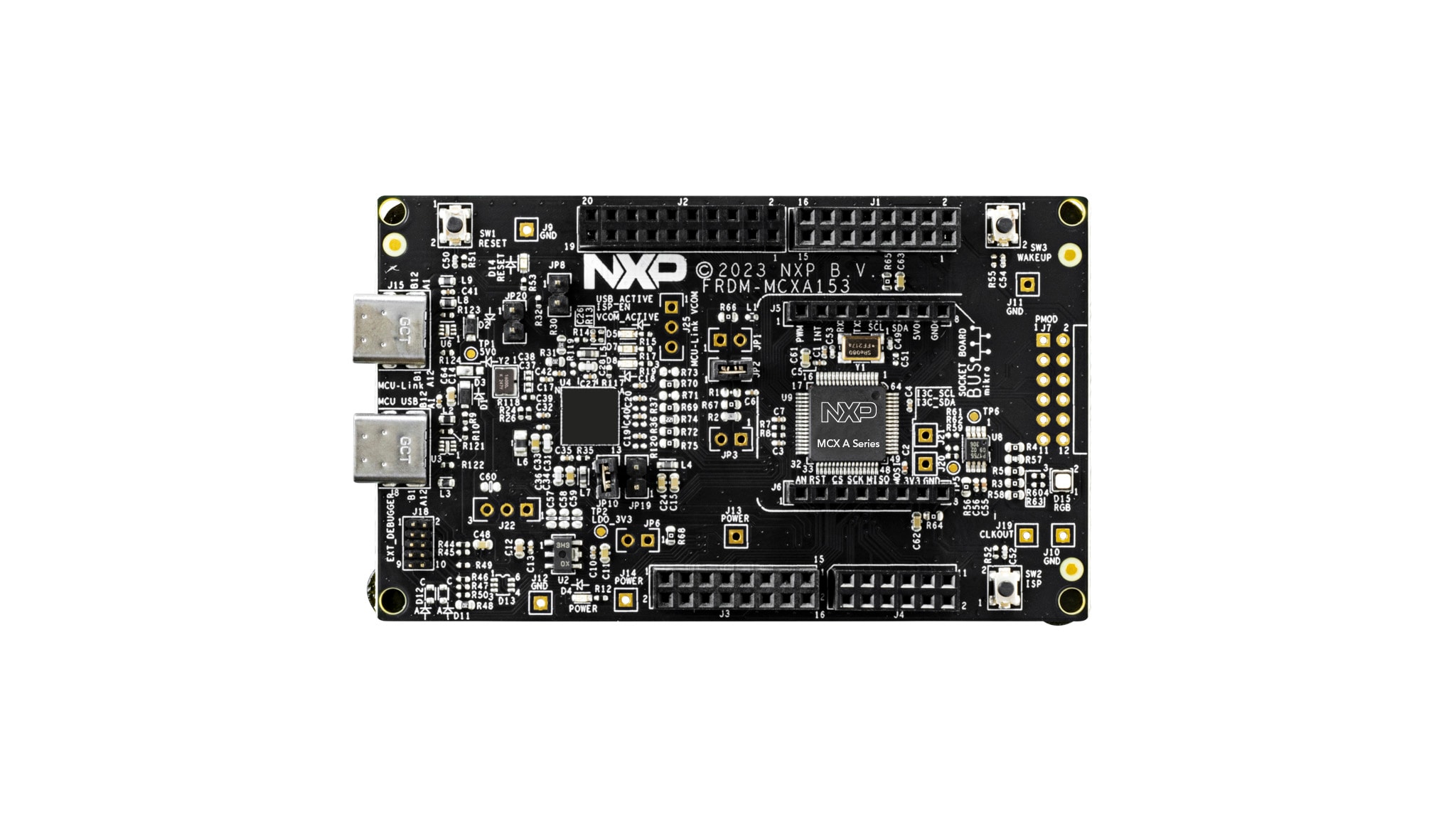
A board overview, product details, documentation and other resources is provided on the NXP website. A board can purchased from ARLE, the NXP website or other electronics suppliers.
SDE overview
The following diagram shows the tools and dependencies used in the Software Development Environment. A detailed description of where to download and how to configure these tools is given in the rest of this document.
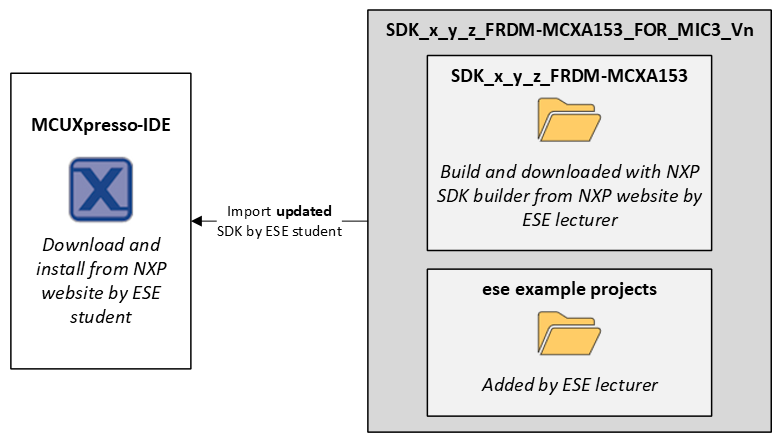
Download and install MCUXpresso-IDE
The preferred SDE is MCUXpresso-IDE and is downloaded from the NXP website:
Select MCUXpresso-IDE v24.12.148 or newer!
Download SDK
The Software Development Kit (SDK) contains source files, project configuration files, documentation, example projects, etc. to help users get started. The updated SDK is available for download as a ZIP archive.
- Download the file SDK_x_y_z_FRDM-MCXA153_FOR_MIC3_Vn.zip from Brightspace.
Note. Successfully tested MCUXpresso-IDE and SDK versions are:
- SDK_24.12.00_FRDM-MCXA153 with MCUXpresso-IDE v24.12_148
- SDK_2.16.000_FRDM-MCXA153 with MCUXpresso-IDE v11.10.0_3148
- SDK_2.14.2_FRDM-MCXA153 with MCUXpresso-IDE v11.8.0_1165
Note. If you would like to generate your own SDK, without ESE examples, use the SDK builder for the FRDM-MCXA153
Import SDK in MCUXpresso-IDE
The downloaded SDK must be imported in MCUXpresso-IDE.
- Start MCUXpresso-IDE
- Close the welcome screen (if opened)
- Window -> Show View -> Installed SDKs
- Drag-and-drop the file SDK_x_y_z_FRDM-MCXA153_FOR_MIC3_Vn.zip into the Installed SDKs view
- Wait until the import finishes
After a successful import, the installed SDK is added to the Installed SDKs view. For example:

Note. If you need to re-import the same SDK version, chances are that the previous SDK files were not removed from your file system. In order to remove an SDK version completely from your file system, delete the following folder:
c:\Users\<user>\mcuxpresso\02\SDKPackages\SDK_x_y_z_FRDM-MCXA153_FOR_MIC3_Vn
Import example project in MCUXpresso-IDE
Example projects are imported from the SDK in MCUXpresso-IDE as follows:
- Start MCUXpresso-IDE
- Close the welcome screen (if opened)
- Click Import SDK example(s)…
- Click the frdmmcxa153 board
- Click Next >
- Select one or more projects from the list:
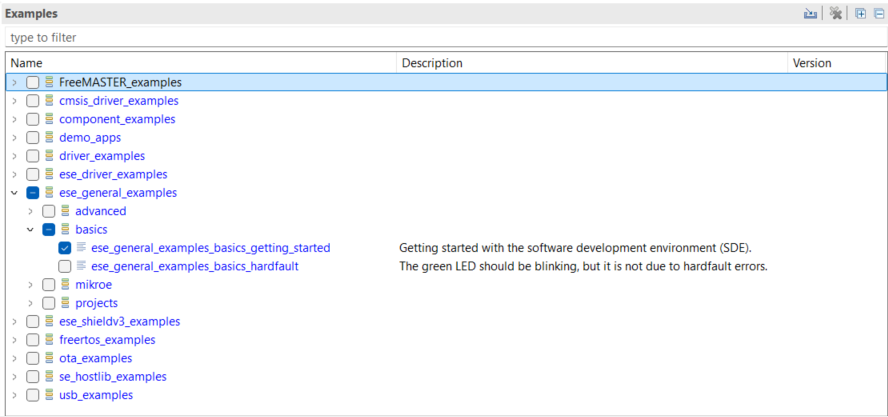
- Click Finish
- Wait for the import to finish
MCU-Link firmware update (optional)
The FRDM-MCXA153 board comes with an MCU-Link debug probe. Out of the box, the CMSIS-DAP firmware is installed. Changing the MCU-Link to J-Link firmware is described here.
Build and run the Getting Started application
If all of the above prerequisites have been downloaded and installed, test the installation by building and running it as described in the readme