Getting Started with VS Code
Resources: ese_general_examples\basics\getting_started
Rather use MCUXpresso-IDE? Check this getting started instead!
Hardware
The NXP FRDM-MCXA153 development board is used in this course.
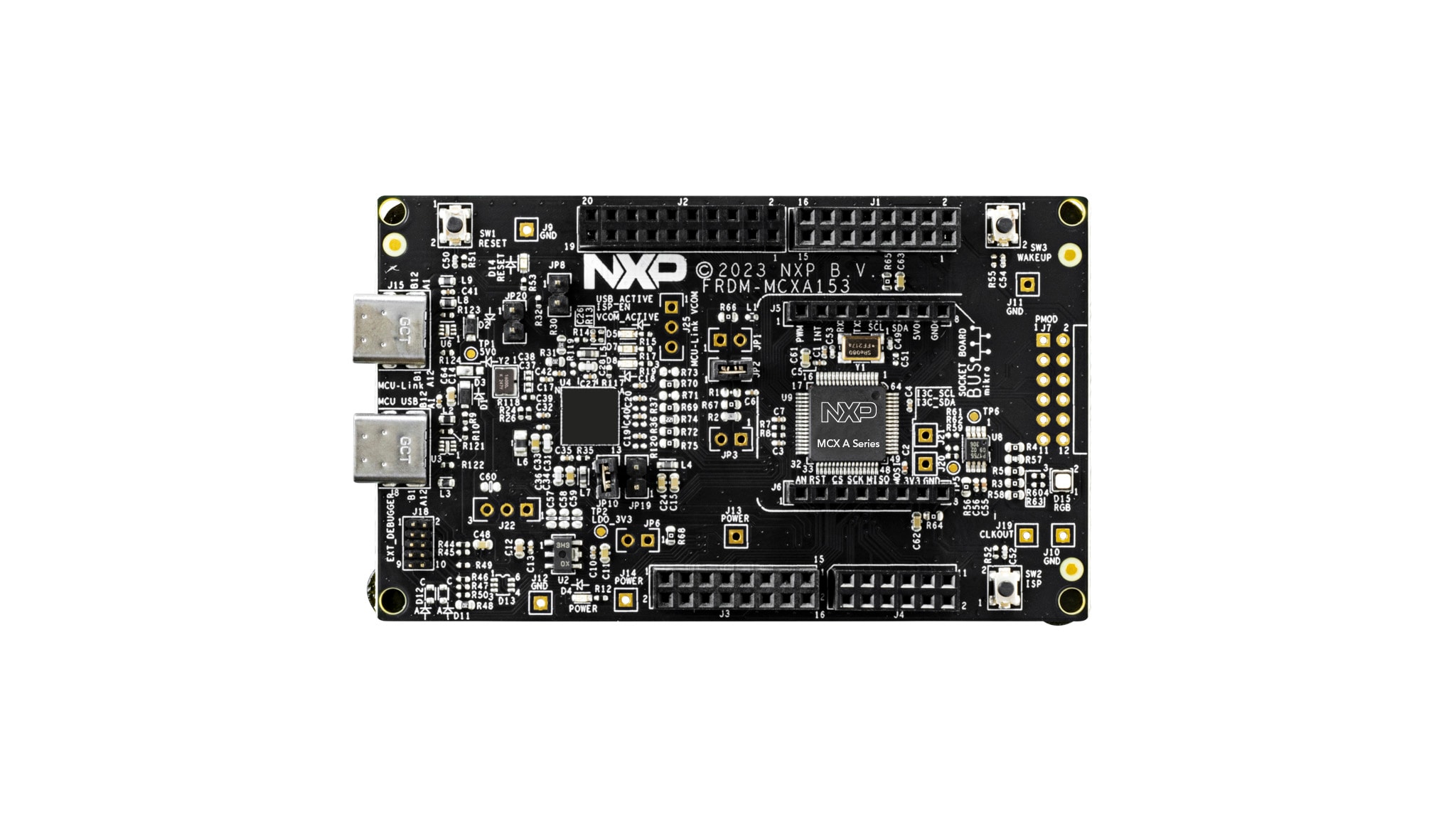
A board overview, product details, documentation and other resources is provided on the NXP website. A board can purchased from ARLE, the NXP website or other electronics suppliers.
SDE overview
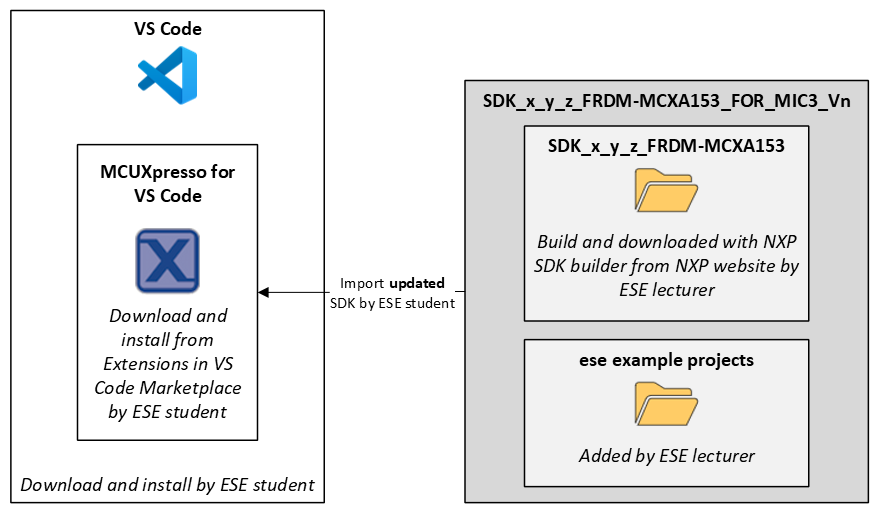
The following diagram shows the tools and dependencies used in the Software Development Environment. A detailed description of where to download and how to configure these tools is given in the rest of this document.
Download and install VS Code
Download and install the latest version of VS Code for your operating system.
Download and install extensions
Download and install the MCUXpresso for VS Code extension.
- Start VS Code
- Install the MCUXpresso for VS Code extension: MCUXpresso for VS Code
Download and install MCUXpresso for VS Code components
After installing the MCUXpresso for VS Code extension, you should be prompted to start the MCUXpresso Installer. If not, click Open MCUXpresso Installer from the Quickstart panel in the MCUXpresso for VS Code extension.
The MCUXpresso Installer looks like this:
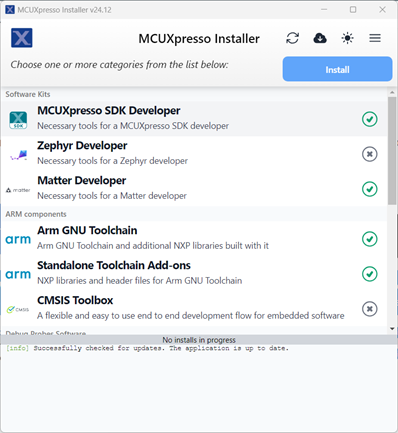
- In this installer, select (at least) the following options:
- MCUXpresso SDK Developer
- ARM GNU Toolchain
- Standalone Toolchain Add-ons
- LinkServer
- SEGGER J-Link
- Click Install
- Close the installer when the installation is finished
Download SDK
The Software Development Kit (SDK) contains source files, project configuration files, documentation, example projects, etc. to help users get started. The updated SDK is available for download as a ZIP archive.
- Download the file SDK_x_y_z_FRDM-MCXA153_FOR_MIC3_Vn.zip from Brightspace.
Note. If you would like to generate your own SDK, without ESE examples, use the SDK builder for the FRDM-MCXA153
Import SDK in MCUXpresso for VS Code
The downloaded SDK must be imported in MCUXpresso for VS Code.
- Start VS Code
- Select the MCUXpresso for VS Code extension
- Click Import Repository
- Click LOCAL ARCHIVE
- Archive: select the dowloaded SDK
- Location: any location will do, but the path should be as short as possible!
- Name: leave default
- Create Git repository: not checked
The result should look similar to this:
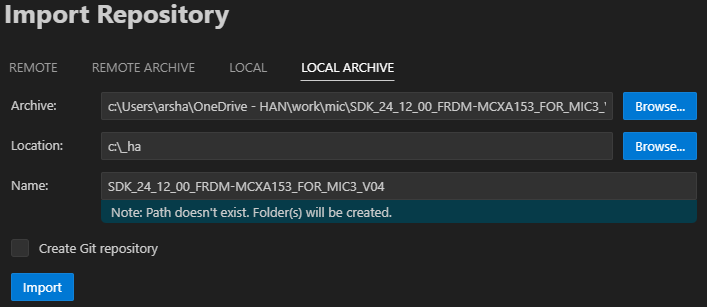
- Click Import
- Wait for the import to finish
After a successful import, the installed SDK is added to the Installed repositories view. For example:

Note. An SDK can be removed by a right-mouse click on the SDK and selecting the appropriate option from the context menu that pops-up.
Import example project in MCUXpresso for VS Code
Import example projects from the SDK in MCUXpresso for VS Code.
- Start VS Code
- Select the MCUXpresso for VS Code extension
- Click Import Example from Repository
- Repository: select the downloaded SDK
- Toolchain: ARM GNU Toolchain (as installed during with MCUXpresso Installer)
- Board: FRDM-MCXA153
- Template: ese_general_examples/basics/ese_general_examples_basics_getting_started
- Name: leave default
- Location: any location will do, but the path should be as short as possible!
The result should look similar to this:
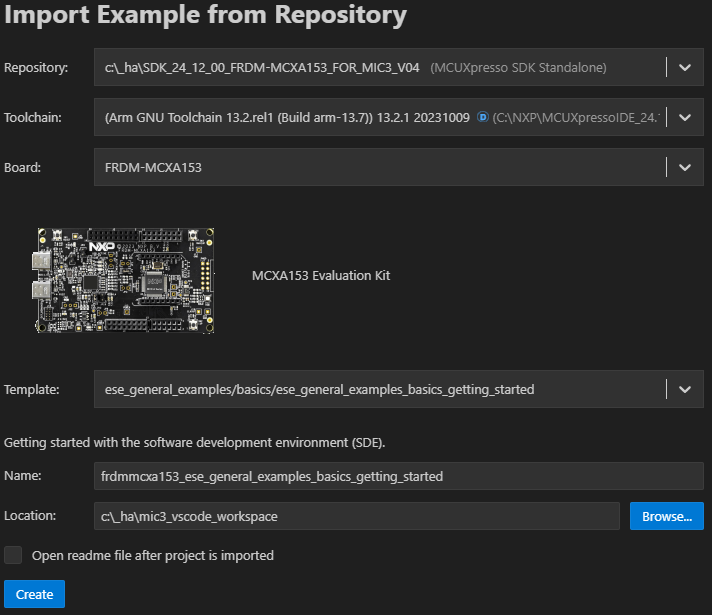
- Click Create
- Wait for the import to finish
MCU-Link firmware update (optional)
The FRDM-MCXA153 board comes with an MCU-Link debug probe. Out of the box, the CMSIS-DAP firmware is installed. Changing the MCU-Link to J-Link firmware is described here.
Check board connection
Check if the board is recognized by MCUXpresso for VS Code.
- Connect the FRDM-MCXA153 board to the computer with a USB cable (J15 - MCU-Link)
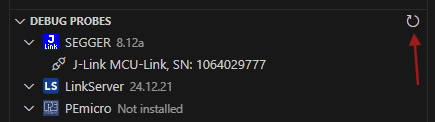
- Check the Debug probes view to make sure the board is detected. If not, click the Refresh debug probes icon
Build and run the Getting Started application
The imported project is visible in the Projects view in the MCUXpresso for VS Code extension.
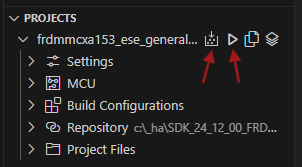
Build and run the project.
- Click the Build icon
- Check the Terminal window for the build to finish successfully
- Click the debug icon
- Wait for the debugger to start
- Click Run, the green LED starts blinking
Note: If you run into build issues, chances are that the path to the project is too long and/or the path contains characters that are not supported by the toolchain (such as hyphens). If so, move the project and the SDK to a location with a shorter path and/or remove unsupported characters from the path.